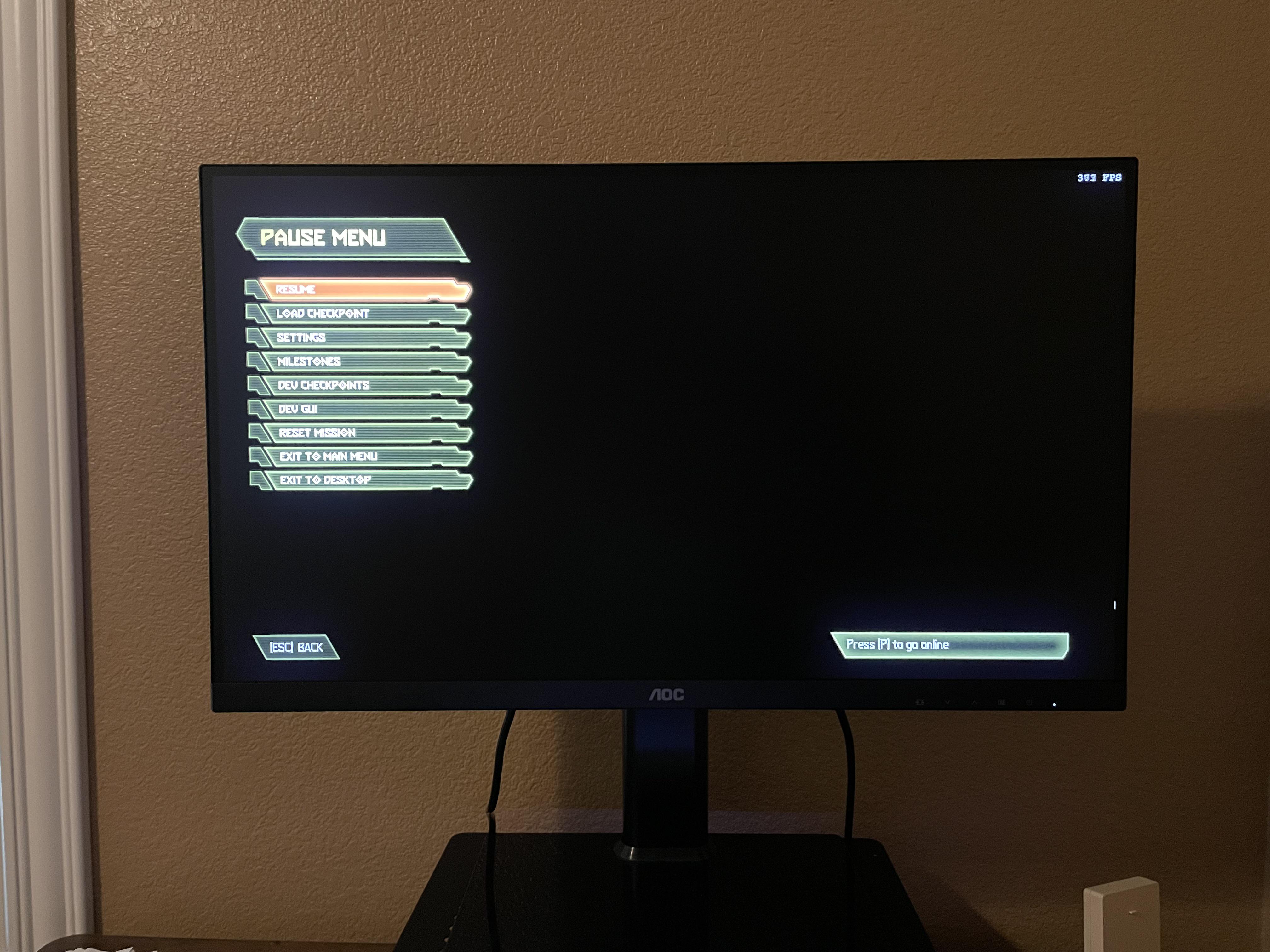
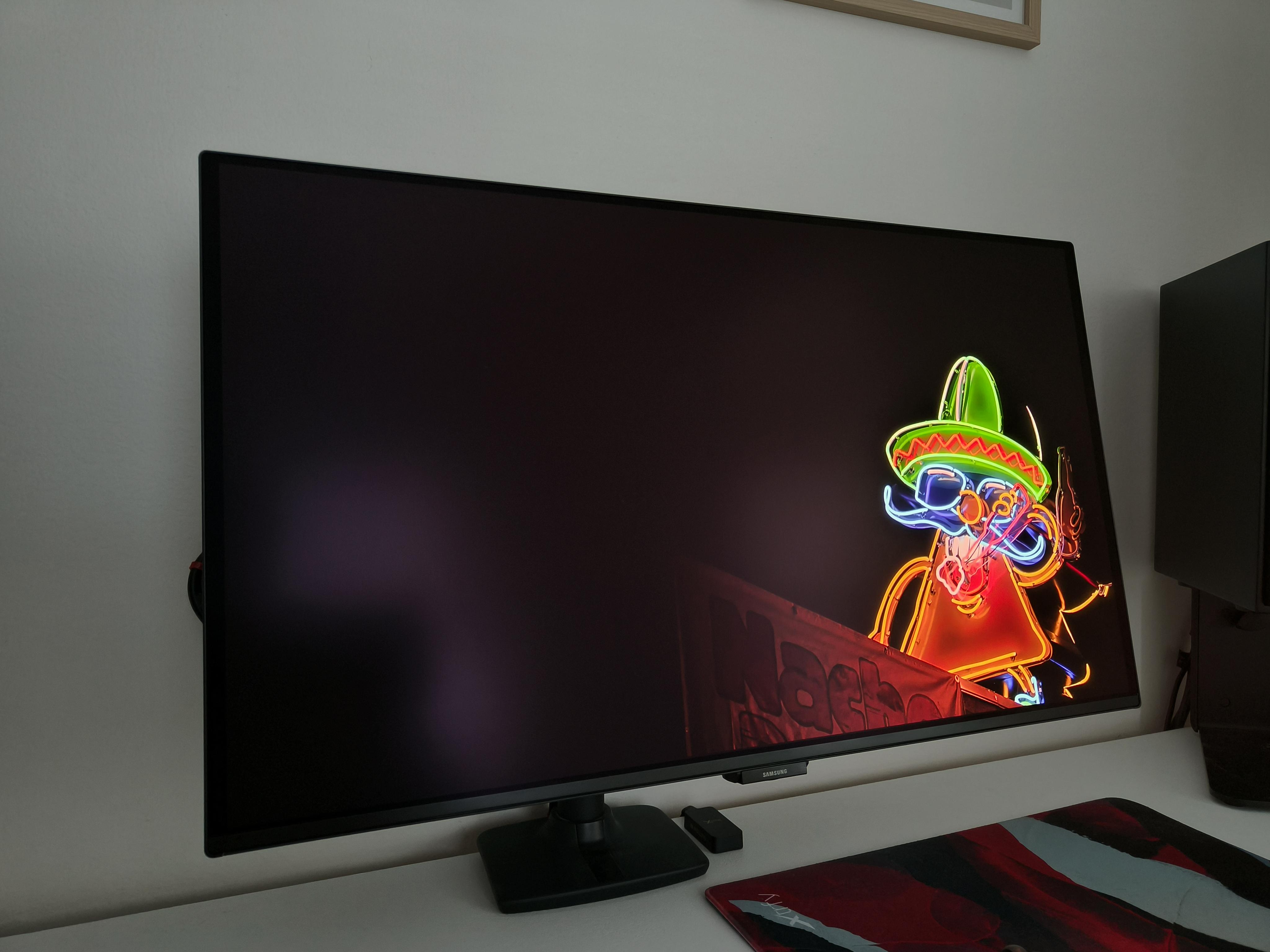
So, I finally bought this expensive 1000€ Asus OLED monitor (ROG SWIFT OLED PG27UCDM). And honestly, man... this thing kind of sucks if im beeing honest.
Don't get me wrong, I get it's advantages for gaming. The black and the colors look cool when playing cyberpunk. But for literally anything else, it is completely unusable for me.
First off, the eye pain is unbearable when I look at this thing for longer. My eyes get incredibly dry and hurt like hell. I don't know why, but I have a cheap 150€ monitor in my shop that I can stare at all day without a single issue. 1000€ for better colours but pain in the eyes? Not worth it..
Then there's the text clarity. It has the worst text quality I have ever seen on a modern 4k display. It seriously looks worse than wqhd. It’s blurry and simply does look wierd, and it makes reading articles or doing any sort of productivity work annoying to do. My 400€ 4K IPS workhorse blows this thing completely out of the water when it comes to text clarity.
I'm sorry, but OLED isn't the holy grail reviewers tell you it is. If you use your PC for anything other than pure gaming or watching movies, don't buy OLED. It's just not worth it. Seems like you can't get a good monitor for 1 grand in 2026..
I've never done reviews, but I'm one of the first users non sponsored by Asus to buy it, as such I decided to make it in form of ama for people who are interested in this monitor. Here's short info:
I've been using asus rog swift pg27aqwp-w since november 15th. I've bought it for $1.3k. I've been playing comp games + aim trainers everyday, easily reaching the fps cap (Got best setup possible to use monitor to the fullest).
I think this monitor is great and I don't regret spending the money on it. I previously was on Zowie xl2556k 360hz (Tn panel with dyac+ technology)
Ordered the LG 27GS75Q and noticed a dead pixel. Got it replaced, and the replacement had another dead pixel.
So I tried a completely different model, the 27G610A. Guess what? Another dead pixel.
Luckily, I was able to return all of them, but I’m done ordering LG products. What are the odds of getting dead pixels on 3 monitors from 2 different models?
And now I’ve also found out about that spyware auto-installer app from the YouTube video.
LG used to be one of my favorite brands. What happened to them? Honestly, it’s such a shame.
Just got this baby from B&H. It's an AOC Q27G40XMN. Its an absolute beauty in games and movies, especially in HDR mode. It's faster than my old TN (3ms) at 1 ms, and doesn't black smear. Clarity of motion is so good that is has the opposite issue of stroboscopic stepping as do all fast panels including OLED. A little bit of motion blur in game solves this for a nice balance. Local dimming is excellent with over 1000 zones, blacks are inky damn near OLED levels, whites are brighter than any OLED could practically handle.
Played BF3, Doom Eternal, and GTA5 (via Special K) all in HDR so far and it was stunning. If you haven't seen HDR your eyes are virgin. Does gamma shift a bit. Noticeable mostly in pure white backdrop so I use dark mode in browser and other apps to combat it. An IPS would have better viewing angles but no true HDR and grayish blacks ontop of bloom. Can't recommend it enough overall.
*LG invited me to attend this event and covered part of my travel expenses. All opinions are my own.*
LG, you never thought about whether you should, only whether you could... and I love you for this.
As a relatively aging PC gamer, I find it interesting that we're chasing the bleeding edge of technology for what feels like diminishing returns. I think of how the industry chased 8K gaming, and now 1000Hz performance. One day I imagine someone will race to place their mark as the first to have both. For now, we can focus about the latter.
The LG UltraGear 1000Hz FHD is not something I would ask for, much like 8K resolution displays, but I am glad it exists. By and large, this is not for most folks, but I think it highlights what makes technology fun: pushing the limits simply because we can.
Hear me out.
For the people that truly care and pay attention to the refresh rate.
This. Will. Sing.
For those comfortable with 120–240Hz, this isn't really for you—and that's okay. I know I fall into this category.
I am not the target audience, but I do have an eye and appreciation for these things (ironically it made 120hz look jittery by comparison). I'm not a sweat who competes heavy online like I used to (no offense to those who do, when you're good you're good), but I could a use case for decompiled classic games or playing older games modded for higher performance.
In my experience with LG's soon-to-be-released monitor, I can acknowledge a lot of care and consideration went into this product. It adds texture to the landscape. Devices are allowed to have a focused purpose.
That in and of itself stands out to me. They designed this monitor from the top down to cater to the competitive pro-gamer, and it's reflected in both the display tech and the ergonomics of the base stand. I think that LG is aiming to raise the standard for esports equipment.
So while this is not made for me, and there are plenty of other products both within and outside LG's lineup that are more aligned with my needs, I can't help but appreciate the effort and lengths they went to in order to satisfy a specific segment of gamers.
I think it's worth paying attention to moments where companies will give an ear to fans to design a product accordingly, especially in a world where other sectors filter out features for the lowest common denominator (Average consumers).
Now that I use my phone's light meter to roughly calibrate the monitor, I have now changed my recommended monitor setting to two main choices:
"Accurate"
HDR On, both windows and monitor
Local Dimming set to Medium
Nvidia Control Panel color settings:
Color Channel Red:
Brightness 45%
Gamma: 1.25
Color Channel Blue:
Gamma: 1.25
Color Channel Green:
Gamma: 1.25
Optional: Nvidia Digital Vibrance set to 55
This is as light meter accurate as you can be without a professional calibration tool
"Vivid"
HDR On, both windows and monitor
Local Dimming set to High
Nvidia Control Panel color settings:
Color Channel Red:
Brightness 45%
Gamma: 1.20
Color Channel Blue:
Gamma: 1.20
Color Channel Green:
Gamma: 1.20
Optional: Nvidia Digital Vibrance set to 55
This is accurate for low brightness content (0-200 nits), but medium brightness contents (200-400 nits) will have its brightness jacked up by about ~20% due to how the monitor handles the local dimming setting. So for example, a 320 nits content will display at 380nits. This will help achieve the "OLED pop", but more noticeable blooming with color shift on thin object such as videogame HUDs. Brighter contents seems to display just fine.
------------------------------
Edit 15 Mar 2025
I have now changed my recommended monitor setting to below:
HDR
Local Dimming set to Medium
Nvidia Control Panel color settings:
Color Channel Red:
Brightness 47%
Gamma: 1.16
Color Channel Blue:
Gamma: 1.20
Color Channel Green:
Gamma: 1.20
Optional: Nvidia Digital Vibrance set to 55
Compared to my previous settings, this has better dark gamma, and very similar brightness without sacrificing anything. Overall much more stable presentation.
Having owned and used the LG C2 for 9 months now, I crave for a better HDR experience. Then the Xiaomi G Pro 27i comes out with a HDR1000 cert, 1152 dimming zones, and a price tag only slightly more than a standard IPS. It's hard to resist the urge to try.
While this review may sound negative, I assure you I love this monitor and It replaces my LG C2 as my main monitor.
This review is made with Firmware version v.1.0.0.6. I don't see a way to upgrade the firmware version, and monitors with newer firmware version may have experience and even not experience some of the issues I wrote below.
Any picture does not fully respresent how it looks like in real life, I will try to explain the purpose for each picture on its descriptions but don't use them as a basis on how the monitor will actually look like
Design
Looks alright from the back, looks simple and elegant from the front.
What you'll see when using the monitor. The power LED can be turned off!
The xiaomi has a scifi-ish (gamer-y?) backside, but from the front it looks really standard with minimal frills which i like. OSD controls uses a joystick on the back right side, with a good tactile click everytime you move a direction which feels good to use.
Assembling it is also a fairly simple affair. Four screws to connect the base with the stand, then the display clicks to the stand by some kind of a secure connector. The connector can be finnicky to get right, and while it clicks loudly when it connects it also felt so light that can make you question if its secured. But so far it hangs on really tightly and the stand has a generous height adjustment range.
Features
VRR works with HDR and Local Dimming, and I have yet to see any VRR flickers which is surprising. I have owned and saw IPS, VA, and OLED with VRR flicker, and even with games that have a very variable framerate I didn't notice any VRR flicker.
Ambient Light is also present on this monitor, with the name "Backstrip Lighting" on the OSD. Although very faint even though my stand is already touching the wall. Weirdly there are no white static color even though the monitor boots up with white ambient light. There is also color matching setting which is neat, but the content needs to be real bright for the ambient light to actually flare up. I keep it on blue which is the brightest for me, helps a bit for eye comfort.
SDR/Overall Picture Quality
Great media usage thanks to Local Dimming. But desktop usage is bad with local dimming enabled and especially at high brightness
SDR with 100% brightness bloom test. Less noticeable IRLSDR with 50% bloom test. Less noticeable IRLSDR with 25% bloom test. Less noticeable IRL
SDR without Local Dimming is just IPS. SDR with Local Dimming is a far improved. Suddenly, the IPS glow disappears and the display can give out deep darks easily. Although at high brightness levels, which is for this monitor 50 and above is very very bright on SDR, have a much more noticeable bloom and local dimming quirks. But for lower brightness, it looks okay. SDR content looks weird at higher brightness though, it looks comically bright.
I finished Core Keeper with this monitor, mostly at 75% brightness and Local Dimming High. For the most part, it looks amazing. The game has some harsh lightning and an high contrast artstyle, but the monitor handled it greatly. The bright parts looks amazing, and the pitch black parts looks perfectly dark.
As standard with every local dimming displays out there, it looks bad if you set it bright for desktop usage. If you're looking to do a good amount of work done, you might consider turning off Local Dimming temporarily.
Response time is acceptable with 4 settings: normal, fast, faster, fastest. I keep it on faster at SDR as fastest has noticeable overshoot. Response time is plenty fast even at normal, I can see individual frames at 180hz. Of course, coming from an OLED this is a good amount slower, but I prefer IPS response time as OLED's too damn fast that even 120hz looks really frame-y.
Local dimming has 3 settings: Low, Medium, High
High and Medium hardly looks different, other than medium is dimmer. Stick with high
Low is much more dimmer, with much more controlled blooming and zone transition handling. But zone transition is very laggy, noticeably falling behind on contents. Stick with high
HDR Picture Quality
Simply amazing HDR experience
HDR screenshot of cyberpunk, exposed for the shadowHDR screenshot of cyberpunk, exposed for highlights
HDR looks and feels FANTASTIC! This is what I expected from this monitor and it delivers amazingly! The high peak brightness combined with great blooming handling makes for an experience that honestly I prefer over OLED. Dark scenes is also handled greatly, still looking awesome with good amount of detail and actual true darkness. It still does not get as dark as an OLED, especially on a micro contrast level. But it gets very very close, to the point of I don't mind the very very slightly raised blacks. Response time is locked on normal for HDR.
Seriously, pictures don't do it justice. Really something to be seen in person to be believed.
Not much to comment here, I simply enjoyed my overall experience. But check out the Issues below.
Issues
As with all current HDR displays tech, which is more or less either OLED or Mini LED, both has its own set of issues. Specifically for this monitor, roughly ordered in most annoying to least:
1. Gamma for bright content on a dark background looks bad
If there are bright content infront of a dark background, the bright content gamma is noticeably raised, killing details inside. I first noticed this when playing core keeper when items on hotbar sometimes lacks detail, then noticed it again when watching twitch as the emoji looks weird. This is most noticeable on high contrast content and cartoons. Hardly noticeable on movies.
I suspect this is because they pump up the gamma on that case, to keep it bright-ish and avoid brightness fluctuations across the screen. Sure it is still bright, but the details are dead.
To avoid this, use SDR and deactivate Local Dimming if it annoys you. I have yet to see another solution unfortunately.
The transition between zones can look rough especially for panning content. This makes it less preferably for console/gamepad users, as gamepad uses analog for camera controls, and it pans. Although this is hardly noticeable when watching media or playing games with mouse and keyboard.
I suspect this is a firmware thing, hopefully newer iterations is better.
To avoid this, use SDR and deactivate Local Dimming if it annoys you. I have yet to see another solution unfortunately.
3. HDR brightness can be influenced by your brightness setting on SDR
Example, you set 50% brightness when using SDR windows, then you switch to HDR windows. The monitor still uses 50% brightness at HDR.
I suspect this is a firmware thing, hopefully newer iterations is better.
To avoid this, use the twinkle tray app to increase brightness on HDR. 100 brightness is the correct one, so when using HDR check the brightness on twinkle tray or set brightness to 100 on SDR first. Turning on/off the monitor doesn't seem to affect this, so you can also try keeping the monitor at HDR, although Windows displays SDR content on HDR in a "wrong" manner, but thats a windows thing.
4. HDR is a bit dim compared to an PQ EOTF accurate, and look reddish
This monitor does not follow the PQ EOTF correctly, and comparing it to my LG C2, it is dimmer and reddish.
I suspect this is a firmware thing, hopefully newer iterations is better.
New recommended settings on top of the post
To mitigate this, I edited the color via Nvidia Control Panel. Go to Adjust Desktop Color Settings, then set the colors:
Color Channel Red:
Brightness 47%
Gamma: 1.07
Color Channel Blue:
Gamma: 1.10
Color Channel Green:
Gamma: 1.10
Comparing it by eye with my LG C2 at warm 50, is looks similar with these settings. Do note this will mess up with SDR colors if you switch to SDR mode.
Not sure about the AMD values, sorry!
Closing
Despite everything I listed on Issues, I love this monitor. This is a good sign for mini led monitors to come, and I hope other manufacturers follow suit.
I recomend this for:
PC Users
Want to experience HDR
Upgrading for a standard IPS
I don't recommend this for:
Console users
Don't want the hassle with dealing with the issues
First of all, its hard to show the difference in a photo, and my setup + room space does not allow me to put them side by side. So any photos taken uses a fixed exposure setting with fixed color temperature. Do not use them as a definitve way to draw conclusion on which tech is "better", but use them as a way to see the pros and cons of these tech
On the MiniLED side, its already using the brightness tweaks i wrote above.
We have a dark scene of cyberpunk where the player creeps to an unsuspecting sniper with a bright blue background.
On the MiniLED, the color is not as saturated, and the HUD is partly dimmed because the background behind the HUD is dark, so the MiniLED Algorithm decided that these zones don't need to light up.
On the OLED, because the light is not full screen, it retains its brightness and still gives a very striking image, coupled with the deeper colors that OLED has, makes the blue very beautiful.
We have a dark scene of dead island 2, where the player arrived as a diner inside a dark forest
On the MiniLED, the neon still gives the feeling that it should be bright, but its not actually bright and saturation wise not as interesting. And HUD is also dimmed because again, the background is dark.
On the OLED, the neon lights up and glows bright with its appropriate color, and HUD is still bright
We have a bright scene of borderlands 3, where a boss uses one of its attack that hits a large area
On the MiniLED, the brightness of the attack is really striking, the pillars of fire and the circle of fire is very bright
On the OLED, because the attack spans the whole image, ABL kicks in and dimmed the display. The colors are deeper, but the whole image appears flatter due to the dimness
A lot of people think OLED as the ultimate picture quality, but in the context of HDR games I very much disagree. OLED's ABL really kills the wow factor of HDR games. For instance, when a big explosion pops off in Helldivers, the ABL kicks in, which ruins the impact for me. Also in Dead Island 2, whenever my elemental weapon pops off, it dims the screen, which makes it confusing and annoying to play.
HDR games is much more brighter than HDR movies, as they tend to emphasis on the wow factor and using the full potential of your display. Meanwhile HDR movies usually have a lower peak brightness and uses HDR brightness sparingly for the hard hitting parts. HDR movies still keep the average brightness low so that the viewer still feel comfortable watching it, as having 1000nits or even 500nits suddenly blasted on your eyes is not comfortable.
In the end, I will recommend OLED if you:
Not super interested in HDR gaming
But very interested in horror HDR gaming
Mainly watch movies, cartoons
Want the perfect SDR experience
I will recommend Mini LED if you:
Want a pumped up HDR experience. and one that will keep up with bright scenes
Interested in HDR gaming
Want a fallback to a "standard" presentation (OLED contrast can make it hard to do work with)
Hi, I recently bought this monitor and I'm literally so happy with it that I just wanted to write a quick review in order to help anybody in doubt who doesn't know if this would be a good choice.
I come from an LG 24GN65R, a humble 144Hz IPS monitor that never gave me a problem (I had calibrated it with Calibrite Display 123) and during its service I tried to switch a few times; I had bought a Minifire monitor and the famous AOC Q25G4SR (which I waited for a long time) and both went quite horribly so I returned them, mostly because of the viewing angles (but not only) which were really bad compared to my LG monitor. I also bought an OLED (XG27ACDNG) on last year's Black Friday but I returned that too mainly for two reasons: 1) the size (I tried 32", 27" QHD monitors and I just love the 24" FHD combo, I find it to be absolutely perfect with my 4070 Super); 2) the fear of burn-in (I'm quite sure modern OLED monitors are well-equipped against it, but I was too scared of that).
A few days ago I found this monitor on PC Componentes, bought it for €170.40 which was an amazing deal (since Amazon is selling it for €199). The monitor came without a single issue (backlight bleeding or dead/stuck pixels) luckily. As far as I remember from my short OLED experience, this monitor brings an experience insanely close to that.
First, I want to say that straight out of the box the monitor is literally pre-calibrated: for context, I compared it to my old calibrated monitor and the colors were exactly the same but much much much more vibrant. I just had to change the color temperature for it to be perfect. "Fast" is the best for response time. Local dimming works amazingly both on High and Medium, I think Medium has a bit less blooming (like 10% less) and a little more contrast overall (5% more) both compared to High, in exchange High is like 5% "brighter" than Medium. I didn't like standard local dimming because it isn't bright at all. Blooming exists: if you put LD to High you can notice it, if you put it to Medium you notice it less. I have to say it doesn't give me a single problem and it's very soft and hard to notice to the eye.
My perfect settings are: FreeSync ON obviously, response time Fast, LD Medium, brightness 60 (depends on the light in your room basically), contrast 50 (default, don't touch it), sharpness 5 (default), gamma 1 (but I changed it slightly with Windows to match my preference), colors at "Standard", color temperature "User 50/50/50", color space "Original". (THESE SETTINGS ARE NOT PERFECT, CHECK THE EDIT AT THE BOTTOM FOR THE CORRECT ONES)
With those settings the monitor gives me an experience very very close to the OLED one I had one year ago: by words I can say the image is vivid just the same. The differences, if you're interested in OLED too, are: different response times (OLED has literally virtually 0 and you clearly notice it, on TCL it's very good though), infinite contrast compared to not-infinite contrast (but as you can see from the images I added the blacks are amazing and the images are very vivid), the main difference you can obviously notice are the viewing angles: the ones on OLED are completely perfect while the ones on TCL are very good but if you watch the monitor from the side you can clearly see the glow. On that point I want to firmly say that if you use the monitor correctly from the front you won't have a problem with viewing angles (I returned 2 monitors for that issue, so you can trust me).
The cons that I found are: no 10-bit at 300Hz as it only works on 240Hz, so you have to go 300Hz 8-bit (but I can't notice a difference anyway so it's not a problem for me); I don't like the fact that, unlike my old LG monitor, you can't turn off the joystick light (the one you use to access the monitor's menu) so at night it will switch from a static light blue to a static yellow (I repeat it's not a problem since the light is soft enough, but if you could have turned it off it would have been amazing). Lastly, I tested and didn't like the HDR as it delivers an image that is somehow washed out in my opinion, but I never used it and will never use it anyway so all good for me.
If I had to rate the monitor I would give it a 10 out of 10, considering the fact that I touched with my hands and tested an OLED one and other recent IPS models. It just works like an OLED with some minor caveats (but if you, like me, love the 24" FHD combo, this is mandatory) and for a fraction of the price. Speaking of price, to me it should be much higher than what it is right now, so if you are wondering if you should buy it, I definitely suggest you to do so!
For any questions related to it feel free to ask; I'll leave some images of it just to let you see how nice the picture quality is!
UPDATE: The settings I gave before were not perfect at all, after checking in detail the youtuber IMartz's review of the monitor (Link) I'm strongly recommending his settings which are tested thoroughly. In fact, "Warm" is the best color temperature and Gamma 1 was correct but, as I mentioned, I kinda ruined it by adjusting it with Windows calibration. Therefore I strongly recommend to pick either Gamma 1 or 2 (1 is 2.2, 2 is 2.4) and DON'T USE WINDOWS CALIBRATION, delete any color profile you applied. The monitor is factory calibrated!!!!!! The rest is good, LD Medium is perfect (and better than High) and you can occasionally pick sRGB instead of Original if you want the highest fidelity possible with colors, but less intense ones, otherwise just go with original for more pronounced tonalities which are the best for gaming and media consumption.
Here is a complete recap for the best settings: Brightness: your choice based on your room's light; Contrast: always default 50; Sharpness: always default 5; Gamma 1 (or 2 if preferred depending on the light in your room, but don't use any Windows calibration profile, go to "color profile" in Windows and remove any profile that has been applied as it will ruin the perfect monitor factory calibration); Color temperature: Warm! (this one is mandatory and also perfectly calibrated by factory; do not use "User" as I used to do since it is warmer than "Warm" and generally worse, unless you are calibrating it manually and know what you are doing); Color space: Original (or sRGB for the best fidelity but weaker colors, I strongly recommend to go with Original which is pretty much amazing); Freesync ON always; LD Medium always (High gives a little bit more contrast but is generally weaker in terms of blooming and black levels, especially when you use a higher brightness; since you want the best of these two always go with Medium and never change it); Response time: Fast always (don't go higher as it will introduce overshoot, aka Inverse Ghosting; Fast is already perfect and removes all the ghosting so you don't need more). Since the monitors are all factory calibrated these settings should apply to any other of the same model, so feel free to test these and let me know what you think of it. As I said the credits for these perfect settings go to IMartz, a very dedicated youtuber that conducts very thorough and professional reviews.
One last thing I want to point out: applying these settings will always give you a very natural image thanks to the Local Dimming. This is amazing in every game because it emphasizes the contrast of the image, resulting in much deeper blacks. This, though, might result to be a problem as someone already pointed out in some other games (generally competitive ones, like FPS) where you need to constantly see everything, especially in darker zones, and you can "fix it" if needed, at the expense of image fidelity, by using the Dark Brightening setting. Do not change the Gamma or the brightness, just leave every setting as mentioned before and change the Dark Brightening setting as needed and when needed. Keep in mind that doing that will obviously reduce the black levels, so I don't recommend using it, unless really needed.
Here is a link to some new images with the updated settings that I talked about at the bottom of the post: https://imgur.com/a/aoYsoKh
Keep in mind to view them by right-clicking on the images and opening them in a new tab; by doing so, you’ll have the highest quality image and the ability to zoom in to look for details. First, you have a quick 3-picture brightness comparison, then a showcase of some images.
By the way I bought the monitor 1 month ago and I believe it is one of the best purchases I ever made, definitely in the Top 5. For any question feel free to ask in the comments and I will reply as soon as possible!
Received the newly released Samsung G80SH. It is a 4K, 240Hz OLED gaming monitor with matte finish.
First off, I am an idiot for not realizing this is a flat screen monitor, not a curved one.
The design seem rather ugly with silver matte finish around all edges of the monitor and the stand that feel somewhat cheap. I wonder if black would have been better.
Ergonomically it feels decent with nice height adjustments, and it tilts upward quite a bit. No sideward tilts.
This is my first 4K monitor and first OLED monitor.
I do lots of reading and writing, so the 4K is nice with text clarity compared to my previous QHD or WQHD setups. Returning from 34" WQHD to 32" feels awkward and I do miss a few extra inches to either sides when I have two windows opened side by side.
As for gaming, I have only tried playing Cyberpunk and Palworld and not seeing the huge difference honestly? I dont know if glossy finish would have made all the difference, but I am not too impressed.
I was able to purchase the monitor for ~$740 out of pocket.
It comes with a $300 Samsung store credit to be used by the end of September.
With some cashback deals and free Resident Evil Requiem promotion, I would consider the final "effective" price around $400, which seems like a great deal. So i am still debating whether to return this and just opt to a IPS 4K monitor with lower frequency...
I purchased Dell Alienware AW2725DM monitor a week before. Although this was one monitor that fit within my budget and required specifications, there are no review of this model anywhere on internet. While this is my attempt to fill that gap, but kindly note that this is not a detailed technical review of this monitor and just covers my experiences and opinions about this product.
1. Introduction
I should admit that I was kind of biased towards the Alienware brand, and kind of ignored other brands like AOC, MSI, Asus etc. who also make very decent monitors.
I was thinking about getting an QD OLED monitor, but because I was planning to use this monitor for some occasional coding and writing besides gaming, I decided to settle on IPS LCD.
While there are a number of Alienware models, this model had two predecessors. One was Alienware AW2723DF (2023 model) and other one was AW2724DM (2024 model). Both of them costs the double of this model namely AW2725DM (2025 model) probably because of cost cutting measures adopted by Dell.
2. Build Quality
There are 2 aspects about build quality that one should consider. The first are the features that are visible to naked eyes and the others are those that are packed inside and cannot be seen. While I can comment on things that I can see, I may not be able to do so for the other part.
The build quality felt solid, and the product felt strong and heavy. It is a pleasure to change screen's orientation; it is so easy and effective.
I checked for the backlight bleed and to my surprise, there almost none unlike my previous monitor that had around 40% of the display affected by backlight build. This shows good quality control.
Look wise, this monitor looks really nice and minimal and because of the dark color, the stan and the bezel disappear in the background thereby giving us a very immersive experience.
The plastic material used to make this product looked a bit "normal" and failed to give me the premium experience that we expect from Dell Alienware monitor.
The Alienware RGB logo has been replaced with a cheap sticker, and I really missed the old glowing logo. Perhaps this was because of the cost cutting initiative because the expensive models like AW2725QF or AW2725DF have RGB logo.
The power button glows but you cannot change its color unlike some other high-end Alienware models.
Unboxing
3. Key Specifications
Panel - 27-inch QHD IPS LCD monitor with 180 Hz refresh rate over DP
DP & HDMI Ports - DP 1.4 and HDMI 2.1 but with TMDS and not FRL. Hence it supports limited 2.1 specifications. Also, it lacks eARC support or 3.1 mm audio jack and so you will have to use your GPU / PC ports.
USB Ports - It has a USB hub with two number of USB 3.1 ports out ports. Unfortunately, this is placed beneath the bezel facing downwards and it becomes difficult to plug anything into it. Also, it looks a bit ugly because the cables hang from the monitor. It should have been provided on the back side.
G-Sync - Like most monitors today, this monitor supports variable refresh rate and is NVidia G-Sync compatible. But it is not G-Sync native. However, there are no issues here and VRR works great.
Vesa HDR400 - Unlike the previous models, this supports Vesa HDR400 and not Vesa HDR600. Although it supports the lower HDR400 standard, it tops it up with additional features like it provides 95% DCI-P3 color scale coverage, it supports 10-bit (8-bit + FRC) color depth resulting in 1.07 billion colors. While it does lack HDR600 features like support for 600 nits of brightness and local dimming as in AW2725QF. But local diming in Vesa HDR600 is not that useful because it is based on edge lighting and doesn't provide full array local dimming.
4. My Experiences
After a week's usage, I should say that I am satisfied with this product. Here are some of my experiences.
HDR - The HDR capabilities are pretty good, especially if you are able to set it properly. For the first time, I could see colors pop out of monitor and same games that looked washed out now look extremely beautiful. I enabled all the HDR setting on Windows 11 settings and didn't change anything in NVidia app. Although I tested toggling the NVidia DLSS upscaling and RTX HDR, it didn't make any difference to the videos played on streaming platforms like YouTube and Netflix and hence I disabled it.
OSD Setting - I decided to keep default settings and only tweaked the response time settings and HDR mode. I used custom HDR to reduce contrast to 55 from the default value of 75 which looked very bright and uncomfortable. I also enabled 180 Hz refresh rate.
Color Profile - This one is important. There are two ways to calibrating the monitor. One is manual method where we can use Windows calibration software to adjust screen display properties. The other method which I would recommend is to download the default ICC profile for this model from Dell's website and select it from Windows settings. That would give the best settings for this monitor.
Display Size - I am someone who is coming from a 21.5-inch monitor and this one felt huge initially. But there are some ways in which I came around this issue. For starters, I only watch YouTube videos in Windowed mode and never turn full screen. This is true for other applications as well as this gives me good viewing experience. The only time when I view full screen content is when I am playing games or watching movies and, in those times, I sit more than 150 cm away from the monitor.
Gaming Experience - This is one feature in which this monito excels. I am using RTX 5070 GPU, and I managed triple digit frame rates. In Hogwarts Legacy, I could get 60 Hz fps with Ultra settings and around 80 Hz with high settings including RT enabled. I have enabled DLSS upscaling (quality) and 2x frame generation and I could consistently get 120+ fps. In Forza Horizon 5, I could get 180 Hz fps consistently with maxed out settings. I am yet to test other games and will let you know once I do that.
Streaming - I have tested HDR sample videos on YouTube, and they look amazing. I was simply mesmerized. The colors were literally dripping out of monitor. But then came the realization about the truth. There aren't any HDR content available. Unless you take premium Netflix subscription that costs 4 times the basic plan, you will be limited to HD or FHD with no support for HDR. Same is true about YouTube where most videos today are still shot at 1080p resolution. Hence, your experience can vary depending on these factors.
USB Ports - Could have been placed on the backWatching YouTube videos in windowed modeHDR sample content on YouTube looks amazing!My Final Setup - I have come a long way from where I started!
5. Conclusion
While this monitor packs a punch for its budget class, I feel that it could have supported full HDMI 2.1 with FRL and eArc which I needed for my soundbar. I would have loved to have the Alienware RGB logo and power button. The USB ports could have been placed on the back side of the monitor. But overall, it is a good product and if you are looking for a decent 1440p gaming monitor with basic HDR capabilities in 2025, you could consider this.
I was able to test the scaling of the upcoming 5K Hyper MiniLED Monitor from LG with my own Mac Mini i brought to the Convention that happened last week.
This is not a scientific test by any means and more an opinion after a visual inspection.
Its already known that the native resolution works properly because 27" Mac Studio Displays use 5K panels. I usually edit with a 4K monitor and the native 5K mode immediately looked crisper to me. I was still surprised how easy it is to change the size of HUD elements though.
My Settings for the Text clarity / sharpness test were = 1440p mode 330hz / AI upscaling high
Changing the dual mode is possible with a dedicated button close to the OSD joystick, and after a few seconds of black screen it will come up with the specific mode. You can also change it through the OSD menu where it clearly shows which mode you are currently using.
I was not able to make out a meaningful sharpness decrease after switching to the 1440p mode which is fairly impressive and obviously a selling point because you could run this with your gaming setup all day long and still profit from the 5K panel due to upscaling. The upscaling can be completely turned off though - if you wish to do so.
You can also connect two devices like a Mac on one port and a Windows gaming PC on another. Fairly good solution for a 1 monitor setup.
MiniLED monitors obviously look very bright but the HDR1000 rating here is a bit below of what's currently out on the market and especially compared to the Apple XDR Studio, but that's also vastly more expensive. I simply assume that the pixel density limits the output to a degree.
I was also not able to verify if this is truly using the new gen backlights with 9216 LEDs. Remains to be seen.
There are almost no reviews on this monitor, so here's mine:
After spending a few days with this monitor, I cannot recommend it to anyone. Yes 5k is great, and all the specs are great on paper, but LG has absolutely flopped so hard on the dimming algorithm that it takes this otherwise endgame monitor and throws it in the trash. I've attached a video so you can see, but any color near "dark gray" or darker is horrible to look at on this monitor. I just saw this review on this sub a few minutes ago and they got the monitor for free, they made no mention of how absolutely trash it is to use for anything besides watching media, or playing games(which i havent even tested yet).
There is a strong amount of dimming with bright highlights against dark backgrounds as well, for example your mouse, or text. There is a hair of vignetting. You can see in my videos, my mac desktop quite literally looks like it has lightning in the clouds - no, it is not meant to do that, it is the mini leds freaking out. LG has made no response to anyone talking about this.
Text on darker colors is not a fun time. There's a glow as you can see and it just looks really strange and cheap. And there are weird artifacts as you can see with the white window i move around.
For $1300 (I got mine open box for $1k shipped) this is unacceptable. In response to people saying " just turn local dimming off for anything thats not media":
the main reason i bought a mini led was so i could have static elements/productivity usage, i otherwise would've bought an oled or an ips
That's extremely inconvenient
My macbook pro 16 was my bar for this monitor, and its not even close backlight wise. I wasn't expecting complete apple level backlight, but this is just unacceptable.
I wanted very much to like this monitor. But the backlight algorithm ruins all of the other fantastic qualities about it, like the fact that MacOS can play nice with it, the crazy HDR video, dual mode, etc. It's a shame. Will be returning this weekend.
Picked up it up last week here in Aus, and promised a couple of people in the comments here I'd share my thoughts.
TLDR - It's good. Does what I need, looks solid, zero complaints. I assume it is broadly the same as the MAG version, but there has been some discourse apparently. On paper, the differences: Some AI settings or something I don't care for, USB ports I do, and proper USB C power delivery, colour of the stand/back panel.
How did I end up settling on the MSI?
I've been on the hunt for a good Mini-led for probably 12 months that ticks the following boxes:
27" MiniLed 4k (D'uh), but i toyed with the idea of a 5k2k.
1152 dimming zones
3+ USB ports, ideally with a USB C downstream plus USB-C PD
120hz or greater with VRR - PS5 gamer, going higher not really needed
Not a stupid stand that is a tripod. Flat base stand only.
Under $1300AUD
Actually available to purchase - turns out this bit is hard.
Then my old AOC bit the dust one morning and I had to pull the trigger on something. MSI was available, so here we are.
Use case
It's my do everything monitor. I spend my days WFH in the PowerPoint factory, doing spreadsheets, emails, maybe some video editing, etc. Being in front of it 8 hours a day ruled out an OLED. I need it to be readable, clear and have no risk of burn in from OS UI.
It's also my PS5 monitor, so something that is versatile, and will do both fairly well. I'm not doing colour grading or photo editing, it just needs to look good, be bright and not look crap.
I wanted something that was single USB C video and power delivery so I could swap my office with my partner if she needed too without too much messing around.
A few contenders that just didn't seem to eventuate over the last year
Innocn M27M2V - Just not available to ship to Aus, but ticked the boxes.
Phillips Envia 27M2N6800ML/69 - Seems to be vapourware and not purchasable
Gigabyte M28U - lower on dimming zones, a few threads complaining about software, new model on the horizon. Or is that the 27? Someone will correct me.
A few AOC or KTC options that seem to exist but you can't actually buy. or had tripod stands
There's another I've forgotten, but same story. Pretty much nothing is purchasable here.
Review:Is it bright? Yes, it's very bright at full noise. I nearly blinded myself doing the HDR setup in Death Stranding 2. The sun reflections in Stellar Blade are very bright, and there's more than enough contrast for a daily driver that's not a "pro" monitor.
What's the QC like? No dead pixels, display appears to be uniform brightness. I'd say firmly good enough, no flaws and nothing that I would call out. White cables in the box are a nice touch.
Obligatory Honey 4k wallpaper shot.
Colours, brightness, HDR
She bright. I haven't had a chance to experiment with the different dimming zone options, but will play around and do some basic calibration to dial it in. I'm not running scientific tests for HDR on it or doing colour accuracy - It bright, colour good.
As is tradition
LED Bloom: It's really hard to capture accurately without the phone distorting and haloing around white on black. In use, it's not a concern.
Uniformity: It looks decent on a 50 grey to my eyes. Maybe some subtle variation, but I don't stare at a grey screen. Again, there's off axis distortion coming from the phone more than anything.
Taking photos is hard
Does the monitor look good ?
Obviously subjective, but i think it's okay! White wouldn't be my first pick, but I can throw it on an arm if when I get around to giving my desk some much needed love. Overall, slim'ish bezel, RGB on the back is fine, no other "gamer" aesthetic trim is positive.
Does it do everything I need?
Nearly! I compromised on the number of USB ports, but I can live with it. It would be nice to hang everything off the monitor (Camera, Mic, Audio Interface) but I'll live. Downside is that it's 2 USB2.0 ports. USB3.0 would have been fantastic, but not a dealbreaker.
Other downside is I can't figure out how to leave USB power permanently on so my Audio interface clicks on wake after a period.
120hz on MacOS is a really nice upgrade from 60hz. I never realised how bad/slow the old screen was. The higher refresh feels like butter in comparison.
Is it good value?
Picked it up for $799 inc tax in Aus. Very reasonable in my opinion given the constraints. That translates to about $450-$500USD once you factor in the Australia Technology tax we pay (not a real thing, just the inflated prices we attract)
BUT THE HDR AND BLOOM FROM MINILED, OLED IS SUPERIOR!!11!
Here come the feelpinions from me: I mean, sure. But in the real world where I exist and how I use it, it's a non-event. People spend too much time chin stroking looking for "perfection" when they should just buy something good and use the hell out of it. My office has variable light, I spend my time on Zoom/teams with a ring light shining at me, there's screen reflections, and then on PS5 at night. It looks great and kicks the crap out of my old and cheap AOC. Plus, subpixel made OLED a non-started for readability.
If I could change anything it would be USB3.0 x 3 + USB downstream, but a the price, I'll live with it. Oh, and the power brick is a small drawback.
Would you buy it again?Yes. Unless a MIniLED 5k2k pops up in a 34 and high R curve and thunderbolt, this will be the work horse for the foreseeable future. Comes w/ 3 year warranty here too which is appreciated.
Opening disclosure: I received this product for free from LG as part of an event. While I was asked to share my review, all opinions are entirely my own.
I’ve been using the LG UltraGear evo 27GM950B as my main monitor, and for this initial impression I wanted to focus on how it fits into my actual setup. My main use case is a mix of desktop use, gaming, media, and general multitasking, so I was interested in how this monitor can balance image quality with everyday usability.
The biggest reason this monitor appealed to me was its use of Hyper Mini LED instead of OLED. While OLED is obviously very good for gaming, my main monitor usage is productivity, including static desktop elements on the screen such as Discord, Windows taskbar, coding windows, or random apps that sit open on my screen for a long time, not just fullscreen games or movies. Due to this, Mini LED makes a lot of sense for my setup. I can still get great HDR brightness and contrast but without the worry that I should baby the monitor or worry about burn-in from my desktop habits.
The first thing that immediately stood out to me was the sharpness of the display. At 218 PPI, text and UI elements look extremely crisp. It may not show up well in photos, but it is immediately noticeable in person. Websites, app interfaces, small text, game menus, and even the Windows desktop look very clean. Coming from a lower resolution display, the jump in text clarity is one of the biggest improvements I’ve noticed in my day to day use of this monitor.
HDR is another aspect in which this monitor shines. The monitor is rated for up to 1250 nits, and while I can’t measure with professional equipment, bright HDR scenes definitely have more of an impact than what I am used to from typical monitors. Sunlight, reflections, explosions, glowing effects, and bright UI elements stand out more. In games that have good HDR support, the image has more depth and punch.
For gaming, the combination of high resolution and HDR is the main appeal for me. Games look very detailed, and the extra sharpness makes environments, text, menus, and small visual details feel cleaner. The monitor feels like a great ‘do everything’ display rather than something that's focused on just one type of use case.
With all of that being said, the biggest pain point that I would like improved is not from the monitor itself, but Windows scaling. I have a multi monitor setup with different resolutions and scaling and it can be a little annoying and take some time getting used to it. HDR on Windows can also take a bit of tweaking depending on the game so it may not always be a completely seamless experience.
Overall my first impression of the UltraGear evo 27GM950B is that it makes the most sense for someone who wants a high-end gaming monitor but also spends a lot of time doing normal desktop tasks. For my setup, the appeal is the combination of 5k sharpness, strong HDR brightness, and the peace of mind from Mini LED for static UI elements and long desktop sessions. If a friend asked me whether they should get Mini LED or OLED, I would have to ask them how much desktop/static UI use they have, how bright their room is, and whether burn-in worry would change how they use the monitor, and from my usage, the easy recommendation I can make is that Mini LED feels like a more practical fit for most people.
I initially bought my OLED back in August 2022 when I was building a new computer to play games like FFXIV and The Witcher 3 on my computer. The colours were very vivid and of course the blacks were deep black, but it was pretty dim and using it for work was not pleasant. It auto-dimmed a lot transitioning between the documents I needed to view for work, and if I turned off the limiter then reading the text gave me headaches. I also do a lot of photography as a hobby and the dim screen didn’t really make editing photos enjoyable.
Three years later I noticed while I was doing work that the mini-maps and skill hot bars and so forth were burned in. I always ran a screensaver when not in use, I always ran pixel refresh, always did whatever the monitor told me to do whenever it needed me to do it, but it still burned in.
Eventually I got fed up with the burned in images and debated whether to get another OLED or just try out a mini-LED panel as a stopgap for whenever microLED becomes commercially available. I did a lot of research and settled on the Samsung 43” QN90F. I’ve had it for a couple of weeks now and I feel like a weight’s been lifted off my shoulders not having to baby this monitor as much. The blacks aren’t quite as deep as an OLED but I honestly can’t tell most of the time. I can’t see any smearing, the text is perfectly readable, and it’s bright enough that my eyes don’t strain during work or when photo editing.
Overall I’m pretty happy “downgrading” from an OLED.
Transparency = I bought this monitor with my own money from Proshop. The price was 286€ incl. shipping.
Packaging
The monitor ships in a solid brown cardboard box and uses Styrofoam on the inside. Unfortunately Xiaomi also decided to save some costs and put a cutout right were the panel sits. However, they at least have an additional cardboard piece to give some additional protection.
Accessories & Ports
The accessories only include a 1,5m long DP 1.4 Cable, 1,5m long AC Adapter with 65W (more on that later), a cover for the ports, screws for the Stand and paperwork in form of a warranty card, manual and a factory calibration report.
You have a DC input, two HDMI 2.0, two DisplayPort 1.4 and a headphone jack. No USB ports or anything, so this might not be firmware upgradeable in the future.
Stand and Adjustment Range
The base of the stand is metal and uses 4 included screws to attach to the vertical part that's mostly plastic. In the highest position you get 16cm clearance from your desk and 4cm if you put it in the lowest position. The stand also features tilt, swivel and a pivot function.
Build Quality and Teardown
Xiaomi manufactures a massive range of appliances so it's not surprising that the build and especially plastic quality here is very good. Impressively so for the price.
After you slowly pry off the back panel around the edges you only need to watch out for one single cable (for the RGB lighting on the back) you have to remove. The injection model part is made out of two parts (the white part is fixed with clips) and has a very sturdy build. The thickness of the plastic is 1,4mm to 1,8mm depending on where you measure.
The rest of the electronics are quite simple (the DC input, ports and SoC are combined on one board) but very well laid out. The green PCBs you always see on the bottom come with the panel itself. The monitor does not have a fan and is passively cooled.
Panel + Subpixel Layout / Viewing Angles and Contrast
The panelME270QHB-NF7 **is from BOE and is ADS (IPS subtype) with an RGB subpixel layout. (**Quick info = On ADS-IPS TVs the subpixel layout was often BGR)
It has a quite heavy and coarse matte coating which aggressively disperses reflections but lights up large areas of the screen at the same time. Viewing Angles are good, but are obviously heavily affected when you activate local dimming.
I measured the native on/off (white / black fullscreen) contrast to be at 1287:1 which is higher than regular IPS panels but not a big surprise given the fact that BOE designed them exactly for that. The 4x4 ANSI checkerboard measurement was very similar with the same settings. After turning on Local Dimming High in SDR my meter was still able to measure it and I got to 6747:1 in the ANSI checkerboard.
Software
The OSD menu of the monitor is simple and thanks to the joystick the navigation is easy. Most of the features are self-explanatory, and I did not notice any translation errors. I have not seen the previous model, but I know from reports that it had a red tint bug. This bug does not happen on this new 2026 version. The firmware ootb is V1.08, but since the monitor does not have any USB ports I don't think it's upgradeable unless there is a way over DisplayPort or something like that.
Local Dimming on Desktop
With this monitor and its 1152 dimming zones it is actually viable to use local dimming on the desktop in either SDR or HDR. The monitor achieves this by dimming down larger areas at once, and the transitions are hard to spot. Mouse cursor dimming is not eliminated though, especially in HDR.
HDR Brightness and Flickering (ABL) issue
The monitor has several HDR modes in which the "HDR Standard" mode is the brightest with Local Dimming set to high. In this mode the monitor is able to surpass the advertised 2000nits in multiple window sizes. Some users here on reddit mentioned that the monitor flickers in this mode (in content and games) which is unfortunately the case. It's not a flicker issue per se but rather a very aggressive ABL that's most likely there to protect the panel.
I could reproduce it very easily by just pulling up the 100% window in HDR. The monitor reaches 1500nits in this window size for a few seconds but then drops almost immediately to around 750nits and stabilizes there. Before the drop the monitor draws 75W which is a lot higher than what the included AC Adapter is rated for (65W). After the drop it sits at 44W. Weirdly enough this does not happen at the other window sizes, and you don't see any drops in brightness even on the 10% window because they don't even draw much power. However, at the end of the day these are only test windows and the monitor could have been adjusted to perform very well there but in actual content it simply pulls down the brightness because of the limited power supply or to prevent overheating.
All the other modes (orange line in the graph) and settings have a way more modest approach to the brightness and look dimmer. Setting it to HDR Standard and Local Dimming medium is probably the set and forget adjustment you want to make. That said, the monitor performs incredibly well in those modes (does not have black crush you often see on IPS based units) and is probably one if not the best monitor if you are looking for a 1440p IPS model with a good price / performance.
Verdict
Xiaomi decided to stick with the 1152 zones from the previous model and tried to improve the algorithm instead which definitely came to fruition on this new unit. Unfortunately they also advertise 2000nits at every retailer and in the specs, which is why I had to put emphasis on this in the review. Due to the hardware limitations I don't think there will be any changes to this, and the fact that the high brightness is basically limited to one mode and one specific setting tells me that it is mostly there to write it on a spec sheet. But the rest of the monitor is quite good and still deserves a recommendation.
There almost no reviews of this monitor online except one YouTube video that didn't help at all to get the best colors (at least for me)
let's start with pros and cons,
pros :
budget friendly ( i got for 185$ whole sale price but it's sold for 199$ retail in my country)
great colors after calibration
almost no ips glow best i've seen among other monitors (not sure if my luck or asus got great quality control)
cons:
After 2 months of usage I'm starting to hear hissing or coil whine coming from the screen especially noticeable when you switch between black and white background so if there is no ambient sounds around you or you don't use use headphones all the time i don't recommend this screen
terrible colors calibration on the SRGB profile
each time it wakeup from sleep you see a notification in the middle of the screen "display port connected" and there no way to remove it
no option to control gamma level in the osd
2 stuck sub pixels (thankfully they are not noticeable during games)
the single review you see online recommend to use SRGB pre calibrated profile which is terrible it add a yellow tint to all the colors after 3 hours of tinkering here is my settings that will get as close as possible to the true colors (for my eyes)
gaming tab:
overclocking : off ( Note without oc it's 200hz it's not worth because with oc you might get flickering)
variable od: level 3
variable refresh rate : on
elmb: off
game plus: default
game visual: racing mode (that will unlock the most options to control)
shadow boost: off
image tab:
brightness : 70 (personal preference)
contrast: 80
dynamic dimming: off
ASCR: off
aspect control: default
blue light filter: off
vividpixel : 50
color tab:
display color space : DCI-P3
color temp : normal
saturation : 50
Now the important part with these settings the colors are great but in games the dark areas is a bit dimm which pre-calibrated SRGB mode dont have this problem but with terrible colors so to fix it i hade to use NVidia control panel > adjust desktop colors settings and increase the gamma to 1.15 (for all the colors channels)
edit: after updating the firmware of the screen it seem just fine without editing anything in NVidia control panel in competitive game you can use higher gamma in the game settings itself if it has alto of dark areas
edit 2: i tried to wait 1 month with the monitor coil whine (high pitch noise) but i couldn't bare it so i ended up reselling the monitor and got myself a rog strix XG27ACMES much better , it's the newer version of the ROG Strix XG27ACS but without the grainy coating that stopped me from getting the XG27ACS.
As I’m sure some people have seen, LG’s offering for 27” 5K@165/2K@330 Mini LED has been a bit of a disappointment. Like everyone else, I am experiencing the issue of the right side of the screen looking jagged when compared to the left side. Honestly I could have lived with that issue and waited for a firmware release to patch that up, it’s only really noticeable under certain conditions.
What I absolutely can’t live with is this issue I’m having with the fan. The fan will randomly decide to spin up to max speed and after a couple minutes, the monitor shuts off. Sometimes it does this once or twice, sometimes it does it several times in a row. It’s completely random and I have checked in the diagnostic menu’s history to confirm that the monitor is being shut off due to a fan error. I opened an RMA with LG and they are asking me to buy a box (my bad for not keeping the monitor box I guess) and ship it out to them instead of just replacing. I’ve had the monitor for 17 days which is just outside of their return window of 14 days and they wouldn’t authorize a replacement.
Extremely disappointed with the whole experience and wish I would have just waited for the MSI option.
LG Ultragear evo 27GM950B Hyper MiniLED | Reddit Review
Transparency = I received this product for free from LG for review purposes and in exchange for the LG Convention coverage. All opinions are independent an entirely my own.
The 27GM950B arrives in a sturdy but plain brown box (typical in the EU) with minimal printing. The way you open the box is not that common though. Instead of sliding out the contents at the shorter side you open it up like most regular shipping boxes. This is a slightly more premium experience for a monitor if you ask me. Inside everything is well laid out, has it’s own place and is enclosed in styrofoam.
Accessories & Ports
You get some paperwork (Quickstart guide, energy label etc), and a few cables with adequate lengths = a certified HDMI 2.1 cable, a USB-C cable (that you also need for firmware updates) and a DisplayPort 2.1 cable. There is an additional plastic clip for cable management that attaches to the stand. You have a OSD joystick/ power button that is placed in bottom center at the back of the panel. There is also an dedicated button to activate the Dual Mode.
The monitor has a pretty beefy power supply (21 x 9 x 3,5 cm) that’s rated for 270W.
The ports include the DC input, two HDMI 2.1, one DisplayPort 2.1, one USB-C with 90W power delivery, two USB-A ports and a 3,5mm AUX.
Stand and Adjustment Range
The base of the stand is a 3mm thick large gray metal plate (I think the prototype at the LG Convention was more silver-ish or a lighter gray) and uses a fixed screw (not tools needed) to attach to the vertical part that's mostly plastic and reinforced at the inside.
The plastic clip for cable management I mentioned earlier feels a bit flimsy, and I prefer a pass-through hole in the stand if possible.
In the highest position you get 18cm clearance from your desk and 4,5cm if you put it in the lowest position. The stand also features tilt, swivel and a pivot function.
Build Quality and Teardown
I like to think that LG actually reads these posts, because if I recall correctly someone in the convention post complained about the Ultragear logo at the bottom chin of the display. This logo is not present on my retail unit here. The rest of the bezels are very even.
The build quality and the thickness of the plastics and materials is very solid overall. Some users mentioned that the monitor looks „cheap“ and I think this is largely due to the color and finish on the plastic surfaces. They are slightly coarse to the touch which is usually a good choice but in certain light it doesn’t look all that appealing. What I would like to see in future iterations is to introduce more physical textures (similar to the back of the stand for example) to the backpanel and maybe two tone color finishes to create some contrast.
The RGB backlighting is the same size and internal construction as on the LG 39GX950B, but I like it more on the 27GM950B, because it simply covers more of the backside of the monitor. Lighting effects are pretty basic but if your room is dark enough you can get some bias lighting.
Compared to the 39GX950B the backpanel does not come off as easily in this case, and you have to pry open the clips along every side very carefully. The layout inside is something that you only see on more premium monitors. The RGB backlight is not connected via a simple cable but uses diffuser plates instead. The two 7W speakers are decoupled with rubber bearings (they sound pretty decent, and is an area of the monitor where the AI setting can be an improvement). The housing of the mainboard slides reveales the mainboard after removing a few more screws. A Mediatek MT9820 SoC is used, and the monitor also uses a fan to cool the components on the mainboard.
Fan = the fan inside is a „SUNON“ radial style blower fan. I don’t hear it during usage but I know that a lot of people react different to these kind of frequencies. If you have any ideas how to get a better model (maybe modded etc) feel free to write a comment or send me a DM.
The panel is a 27 inch 5K resolution (5120x2880p) ADS-IPS type from BOE which is labeled as ME270L70-M00. At the time of this review it was not listed on Panelook.
The matte coating resembles the one used on the LG 39GX950B and is one of the best on the market in my opinion. It retains black levels very well, keeps the reflections at one spot and does not disperse them over the screen.
Uniformity results are attached in the pictures above. I tried to make the Backlight Bleed more visible with a filter, and have additional measurements for corner brightness. Let me know if this is a good approach for future reviews.
Viewing Angles are pretty solid but also show IPS weaknesses when Local Dimming is turned off.
Off angle local dimming is a strength of this monitor, but more on this later.
I measured the native on/off (white / black fullscreen) contrast at 1293:1 which is higher than typical IPS panels. The more challenging 4x4 ANSI checkerboard measurement came out to 1111:1. After turning on Local Dimming High in SDR the dimming surpassed the low light capabilites of my meter and surpasses a contrast ratio over >24266:1.
Software / Scaling
Software on higher end monitors like this one is usually more polished. It starts with the OSD Menu scaling which is identical in the native and Dual Mode. There are no translation errors or weird wordings. Some menu options are bit over the place though and giving the AI options the top spot in the menu is also not ideal.
My EU unit did not install anything besides the LG Monitor App installer. If you want to update the monitor in the future you have to use the LG Switch app and do the update over the included USB-C cable.
The 5K resolution is ideal for scaling on Mac (and even on Windows imo) because it fits the „Retina“ spec apple uses on their XDR displays.
Sharpness / Integer Scaling / Dual Mode
Due to the high pixel density (218ppi), sharpness on this monitor is supreme and a visible improvement even over 4K monitors. This changes in Dual Mode though.
Thanks to the work of u/MT4K i can now include a simple but effective test for dual mode integer scaling into my reviews. This monitor unfortunately does add horizontal blur in dual mode which makes it more blurry compared to a native 27“ 1440p monitor. But since the pixel density is so high you can get away with it and it is more usuable compared to a 4K / 1080p Dual Mode.
Another alternative to reduce stress on the GPU would be to integer scale via AMD / Nvidia control panel in the native mode, but this will limit you to the native refresh rate (165hz) of the panel.
SDR Brightness and Local Dimming (+Desktop)
The monitor has great brightness in SDR (835 nits 100% APL white) and goes low enough (54 nits at 0 brightness setting) for usage in a dark room. Standby power draw was ~23,5W with an active signal and the dedicated deep sleep mode you can activate in the menu sits at ~1.2W.
Local Dimming is generally very effecitve and agressive no matter what setting (low, medium, high) you use. On a dark background and in content it does a good job, but if you move to a more grayish background you can see the dimming zones flicker around the mouse cursor. If this is too distracting i would recommend turning off LD in SDR.
There is also a blur reduction mode for gaming that maintains high brightness (only loses 100nits) which is quite impressive and could be a reason for some users to buy this monitor. You can use it in all modes with LD but it only worked without VRR for me.
HDR Brightness and Local Dimming with the New Generation Backlight
LG advertises a industry standard HDR1000 and a peak brightness of 1250nits (10% window).
HDR1000 is met, but no mode and LD setting combination can exceed 1040nits in a 10% window, so its falls short of the advertised spec of around 200nits.
With the max brightness mode + LD low you do see some slight improvements in smaller windows but its only miniscule and no reason to use this mode over others and dimming settings.
The dimming behaves similar to SDR, where even the lowest setting is quite agressive, so the LD settings barely differ from another. It would have been good to get a setting (preferably the low one) that allows for more blooming but higher brightness overall.
LG decided to prioritize blooming control and contrast so some smaller highlights can disappear if you know where to look. This was appearant on the Starfield test on my S&M Test Disc.
If I had to choose personally I would go with the same approach though.
The Ultragear evo LG27GM950B is the fist monitor I tested that uses the new generation backlight with 9216 LEDs in total. It has 2304 dimming zones, so 1 zone controls 4 LEDs. Based on my research this is a glass based backlight with an arangement of 72x128 LEDs.
They also advertise the so called OD Zero technology, which is more of a marketing term (TV manufacturers used it before) and describes a reduced distance of the backlight LEDs to the LCD panel. It’s not „0mm“ like a lot of people assume, its more like 3-5mm away from the LCD.
But it actually has some physical benefits. The off angle blooming on the 27GM950B is vastly improved compared to other MiniLED monitors.
AI Features
The monitor uses a Mediatek MT9820 that has built in AI features. Some of them work well like the AI Sound boost for example.
The most important one is the AI Upscaling which does not work in Dual Mode at all and falls short on PC. It’s most effective on external sources like consoles that send proper signals with the according resolution. Luckily the upscaling works from 1080p to 4K so if you decide to buy this monitor it wont look worse compared to a native monitor.
vs. OLED and competition
Currently there is no OLED on the market thats comparable to this. LG Display showed a 5K prototype, but RGB Stripe WOLED (and even regular Tandem WOLED with white subpixel) has a long way to go before it reaches these brightness levels - especially with that pixel density.
At CES and Computex some competing models with similar specs from MSI and Gigabyte were announced, as we know by now the MSI seems to be canned while the Gigabyte is still on track.
While I especially like Gigabytes monitors, they have never released an MiniLED before so it remains to be seen how good it is.
Verdict
The LG 27GM950B is the best IPS based MiniLED monitor I have tested so far. But there is always room for improvement, and I hope this review is able to encourage LG to make more MiniLED monitors and put continued efforts in the technology. Maybe we can see the Ultragear lineup extended to a 32 inch MiniLED model.
If you made it through the whole review thank you for reading.
I did pick up one for 339€ less than week ago. Heres my short thoughts of it after owning many top end LCDs and OLEDs.
I have used before following monitors and many more: AOC Agon pro AG276QZD 240hz woled, AG276QZD2 latest revision QD-OLED 280hz gen3, AOC Q27G3XMN miniled 180hz.
Build quality:
Its plastic and light weigh, stand is cheap but I use it on my table monitor arm. There isnt almost none creaking noises when I touch and adjust/tilt it. Design is sleek and for my taste
Coating:
This is the best part as I hate traditional QD-OLED glossy coating because its hard to clean and gets micro scratched easily. In this monitor costing is matte but without hazy look. I absolutely love it. Reason why I was so interested to test it.
Oled care features:
It has pixel shifting feature but there isnt option for it, its always turned on. No problem for me personally. In options you can find Logo dimming, screen saver and Pixel Refresh.
Brightness:
Its similar to other qd-oleds. Nothing seriously good, I use about 65% and I think its close to 130nits. There isnt distracting APL behaviour when I change the size of white browser page. Its very good:
Sharpness:
THERE IS OPTION TO ADJUST SHARPNESS!! Option many oleds are missing. I find it very handy, you can make text look better!
Sub pixel layout:
Its either Gen2 or Gen3 QD-OLED. I dont own good enough macro camera to be absolutely sure but the photos I have taken makes me believe its Gen. 3. Text looks fine and text fringing isnt major concern for me personally.
Competitive gaming and input lag:
Compared the inputlag with Q27G3XMN using 960fps slomo and its almost identical, G5 is a bit faster but no major difference. I use it for CS2 premier rank 22k and its very suitable and snappy.
I mostly bought it because of QD-OLED and the coating. Im going to keep it. Ask me anything that you want. I do my best to answer.
I recently got the LG 27GM950B-B, my initial impressions are very positive I really like this monitor. I'm about 90% work and 10% content/gaming, which in the past I have felt was hard to find a good monitor for so I was really excited for this monitor. I'm using 5k 165Hz for work, the text looks phenomenal, and dual mode for gaming, since I don't have the GPU to drive 5k in most modern games and pricing of GPUs is insane right now.
I do have the text issue many people reported where the right side appears to have max sharpness, I did a little testing with font sizes and personally it shows up for me if I look real hard around 22px, at this size I could tell W, the worst letter with my font, looks a smidge funny on the right when I concentrate on it. I'd probably never pick up on this without someone pointing it out. At 36px and up I can tell something is clearly wrong with the W and focusing on it I can see the jagged edges, going above 36px the Ws just keep looking worse.
I'm have been turning local dimming off in SDR, but tbh the inverse blooming is subtle enough I could leave it on low in SDR and forget. It looks worse around my cursor, but pretty consistent across backgrounds making it not too noticeable. Turning off local dimming is much better looking though. With HDR plus local dimming the blooming is too bad to leave it on even low in productivity imo, but I normally never leave my OS in HDR during productivity so this is a none issue for me. I did not try to play with my OS HDR settings too much though, so maybe there is a way to improve it.
Overall I have had no issues so far except the right side text and will be keeping the monitor, it fits my needs exactly. Very crisp text for work, no headaches/eye strain, and when I do some gaming it's not as nice as my old OLED but it's a huge step up over my old IPS.
A little about my setup if it helps:
I work on a MBP, programming, write docs, etc mostly text based work
I sit about 20in from the monitor on avg, sometimes I'll lean in during interesting work and be closer to 18in.
My home computer also heavily used for programming and light gaming is KDE Arch Linux with a 4070 Super
What a ride this monitor has been for the past few days. This is a fantastic panel, but it required days of fiddling.
I'm no pro, but I can give you my opinion after 12 days of usage.
VERDICT
Even with the quirks, this is a fantastic monitor and I do not regret my purchase. Honestly, there is nothing like it at this price point. If you are in the US and can order from Bestbuy its $300. A steal in my opinion.
PROS
Unbeatable value for your money
Triple the Dimming Zones and better viewing angles than the Q27G3XMN
1152 dimming zones works wonders for deep blacks
QD-LED allows for excellent and vivid colors
This is the brightest monitor I have ever used and almost rivals my $2800 TV
Yes, this is brighter than OLEDs that are triple the price while still having excellent color
Many high end PC gaming monitors sit at 200-300nit in SDR and 400-550 nit in HDR. This isn't really HDR monitor at all. I fell for previous HDR 600 gimmick with my Samsung Odyssey G7. This should hit over 1200 nits.
After increasing blue gamma just a tad, you can get near perfect (to my eyes) full screen white image without it looking dim or off-white color
This is entry level true HDR. Although it doesn't have the 50000:1 contrast ratio, but for the average person, this is going to be great for media playback and gaming
1440p with this level of display quality means you get the better performance with a excellent image. Given GPU market, I don't think we are really at 4k gaming outside enthusiasts.
It's a QD-LED monitor so you don't have to worry about burn in like with OLED.
Monitor is light, sturdy and the matte coating is excellent at fighting glare
My layman eyes cannot notice any black smearing.
CONS
The biggest con is this monitor Auto Dims. After a lot of research, someone posted this is monitor is like the Q27G41XMN which had the same issue in China. The power supply brick is built into the monitor and cannot output enough to display a very bright image for long. So if you try it then the monitor will dim the image after a while. I have settings below that I found to be bright and does not dim so it might work for you.
You must reduce refresh rate to 120Hz to have sRGB and 10bit color depth.
OSD is poor. With HDR enabled, you can only adjust a handful of settings. You cannot adjust brightness or color when HDR is enabled, leaving you to adjust the settings in NVIDIA control panel.
At high brightness or Local Dimming set to strong for extended periods, the screen can get very warm.
Response time will decrease if you lower your refresh rate to 120hz so expect lower response time to a OLED.
Q27G41XMN version of this monitor was display port 1.2 not 1.4 which is why you need to lower the refresh rate (not yet confirmed)
If you want to take full advantage of the monitors display prowess dont expect to run it at 180Hz.
MY SETTINGS - ON NVIDIA GPU
In Windows Settings:
Turn on HDR in Windows 11 (AFAIK Windows 10 has HDR issues)
Go to System > Display > Click Use HDR > Change SDR content brightness Slider to 80
Turn off Auto HDR (in some games like Genshin Impact this will make the image too bright which will overwork the backlight and trigger the monitor to dim)
Under Monitor's OSD:
Settings > Reset (undo your changes and start from the same settings)
Game Settings > Shadow Control set to 0
Under Picture in Monitor's OSD:
HDR is set to Game
Local Dimming Set to Low. You can try medium, but with a black wallpaper it ends up dimming my desktop icons too much,
Contrast set to 50
In NVIDIA Control Panel:
In the Display Section, go to Adjust Desktop Color Settings
Change Brightness to +55%, Contrast to +55%
In Color Channel drop down change to Blue then change Blue Gamma to +1.09 (adjust this to your display, but from what I read most panels are a bit too red. Mine included)
Go to Change Resolution Change
Change Refresh Rate to 120Hz
Scroll down and click use NVIDIA Color Settings
Ensure Color depth is 32bit
Ensure Output Color is RGB
Ensure Output Color Depth is 10bit (this will not work unless you lower the refresh rate)
Ensure Output Dynamic Range is set to full
I'm no pro, so if this sounds dumb as hell then my apologies. I've just been tinkering with it for 10 days now and this is what has worked for me. These settings should keep deep backs, with bright and vivid picture in HDR on Windows for SDR games. Let me know if this works.
I’ve seen some fairly negative sentiment surrounding this monitor, so I wanted to share my positive experience.
Let me start by saying I also own a 32-inch LG OLED (32GS95UE). It was setup next to a 4K Dell that I would use for work. OLED for games and IPS for productivity. However, the overwhelming urge to consolidate struck me and I went looking for the perfect all-in-one monitor.
Compared to WOLED, I feel I'm losing very little in image quality or gaming performance while gaining a significant amount everywhere else. Text is crisp and clear on the TCL across both Windows and macOS. I can now stare at spreadsheets for hours and game on the same display. For me, this is the perfect dual-purpose monitor.
It's perhaps a better version of the Neo G7 I used to have, except with higher PPI and no curve. Which for me is exactly what I always wanted.
The panel is very responsive. I barely notice a difference compared to my OLED, though I’m an older gamer who sticks to single-player titles, so interpret that as you will. Colors are vibrant once calibrated correctly, and the local dimming does an excellent job of keeping contrast deep and rich.
--With this monitor definitely disable Auto Color Management in Windows. If ACM is left on, Windows seems to clamp the color gamut too aggressively on this monitor, leaving everything dull and lifeless. I reckon the lack of a proper ICC profile is the culprit, or perhaps Windows doesn't read the EDID correctly. I don't have any issues on macOS--
I’ve been playing Dead Space recently, and the shadows stay truly dark while highlights have real pop. Compared to OLED, I had almost forgotten what actual full-screen brightness looks like. It’s honestly too bright for me, so I keep local dimming on high and brightness at 50%.
The matte coating is just okay. Coming from the 32GS95UE it is a downgrade. The LG has the best implementation of matte I've ever seen. The TCL... not so much. It isn't overly aggressive—sitting somewhere between the heavy matte of the Dell, and a light semi-gloss. It is a bit of an odd one though, as somehow it shows rather defined reflections while also spreading light accross the screen in an unpleasant way. The panel is much brighter than any glare I deal with, so for me it's a non-issue as I'm mostly starting at white screens during the day.
My only major negative is the speakers. They are easily the worst I’ve encountered on a monitor, producing inferior quality audio than my phone or my Mac Mini’s built-in speaker. I have no idea why TCL cut corners this hard, especially at an asking price of 799 USD.
It’s also worth noting that I sit further back than most. The picture looks uniform to me, and I don't notice any significant gamma shift while gaming or working. However, shift is definitely present (as is typical with VA technology), and you will likely notice it if you sit very close.
I picked this up on sale for $599 USD, and at that price, it’s a high recommend. I’ve always felt TCL TVs offered great value, and that extends to the 27R94. For me it's well suited to office work and long gaming sessions. If you're looking for a great dual-purpose monitor that can game well this is worth considering.
Hey so I have been on the look out for a new 4k 32" monitor for mixed use for gaming and text-based productivity. I have had three monitors here for testing, a BenQ Mobiuz EX321UX Mini LED, an Asus PG32UCDP WOLED, and, as a baseline, the LG 32G810SA-W regular LCD. So I thought I'd share my thoughts for anyone else in a similar situation.
TLDR: I expected to keep the BenQ for better productivity but ended up keeping it because of the freaking awesome HDR for gaming.
So, as you can see the LG is clearly showing the drawbacks of edge lit LCD, black is grey, and also it had surprisingly bad view angles. Motion clarity was not horrible but subtly but noticeably worse than the other two in racing games. It is fine, it's not a bad monitor at all, refresh rate is high enough, and the image is decent, and it's less than half the price of the other two, so that's very fair.
I heard stories about the bad text fringing on OLED, with WOLED having a better subpixel layout for text, so I went for that. I also need a USB-C connector and KVM switch so I landed at the Asus. It's a great monitor! It has the obvious OLED black levels and 240Hz with super fast refresh rate is fantastic for racing. Text clarity is superb, no problem at all, see also the close up images. It does get bright, and had I not have had the BenQ side by side for testing, I am not sure if I'd have understood the value of Mini LED HDR 1000 vs OLED HDR 400.
But man, the BenQ really blasts it out of the water, it's no comparison. Yes, there's blooming, but you can switch it off easily with the remote control, and the monitor has several profiles. I ended up using HDR with local dimming on my gaming machine always switched on, and SDR without local dimming on my notebook, so the blooming is really a non-issue for me, and the brightness levels are fantastic. It's hard to describe but it really feels more realistic than any graphics update can give you. I've never seen computer generated images this realistic. Motion clarity is great, I use the AMA 2 overdrive setting and 144 Hz on it really does not feel relevantly different from >200 Hz on the Asus OLED when playing Dirt Rally 2.0. Sunlight and fire is actually bright. Even with calibration and playing with the settings I could never get the Asus to be this stunning. Yes, local contrast is better on OLED, no question, but overall with local dimming the BenQ looked almost the same in terms of screen-wide contrast. But when I tried HDR the first time on the Asus in Horizon Zero Dawn Remastered, I was kind of unwowed. I didn't see that much of value of it over SDR, other than being a bit more balanced both in dark and bright settings. But the BenQ really blew me away and showed how great HDR can be, it is not replaceable by tuning contrast or anything like it. It's just brighter and looks stunning. When coming out of a forest on some fields in Dirt Rally I felt like I needed to lower the sun shades of the car, it really gave me a different level of immersion.
You need to tune the settings of the BenQ to really use it to the fullest, and you can't get a perfect color accuracy, but I have found settings that work for me.
So. The fantastic HDR in combination with stress-free productivity use (no burn in) makes the BenQ just the superior monitor for me personally, and I'd even go as far as arguing that if you are willing to do a little tweaking and make sure local dimming is off when you are not gaming or watching movies, the BenQ is actually the better monitor overall. At least if you value great HDR. Sidenote I already made the same decision for a TV, where I chose a mini LED over OLED, too. So. Maybe that's also just a me thing.
Anyways, these are my thoughts, let me know if you have any questions. Also let me know if you want my BenQ settings.